The authenticator app
ReadyYdentifi Authenticator approves a sign-in or a payment with Face ID or Touch ID — and shows you exactly what you’re approving. Pick the task you need below.
Who this is for: anyone whose bank, employer, or another service asked them to install Ydentifi Authenticator. If you build software with Ydentifi, start with the developer documentation instead.
Ydentifi Authenticator is the app you were asked to install. It approves sign-ins and other sensitive actions with Face ID or Touch ID, and shows exactly what is being approved, every time. It is an iPhone app; an Android app arrives at launch. Examples follow one person: Alice Cooper, who logs in to Acme Bank, Miramar CU, and Northwind Health — a few accounts, across different organizations, on one phone.
login.acmebank.exampleMiramar CU
login.miramarcu.exampleNorthwind Health
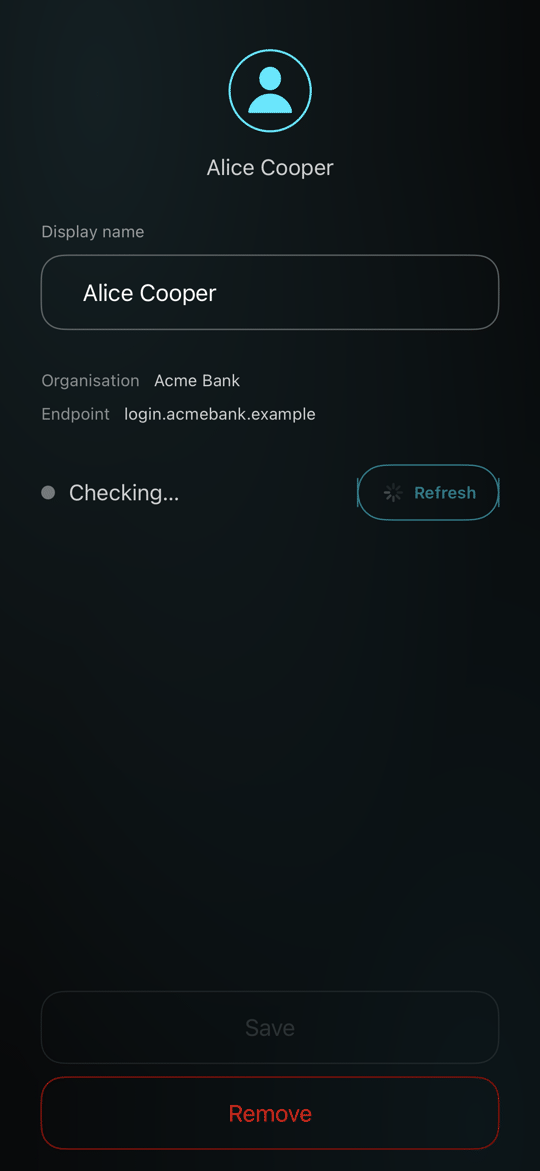
login.northwindhealth.exampleThe story's one human. Alice keeps a few logins on the phone — a bank, a credit union, and a health portal — the way most people do. One device binds to one person: the app never asks two faces to share it. Most screens are the Acme Bank account; the others appear wherever the manual needs to show more than one.
What do you want to do?#
- Add an account — scan the QR code your service gave you
- Approve a sign-in — see what you’re confirming, then confirm
- I have a new phone — remove each account on the old phone, then add it again with a new setup code
- Something looks wrong — errors, lockouts, and security warnings
- Get more help — when the app can’t answer it
First launch#
What a brand-new install looks like before anything is set up — and why the only thing to do is scan.
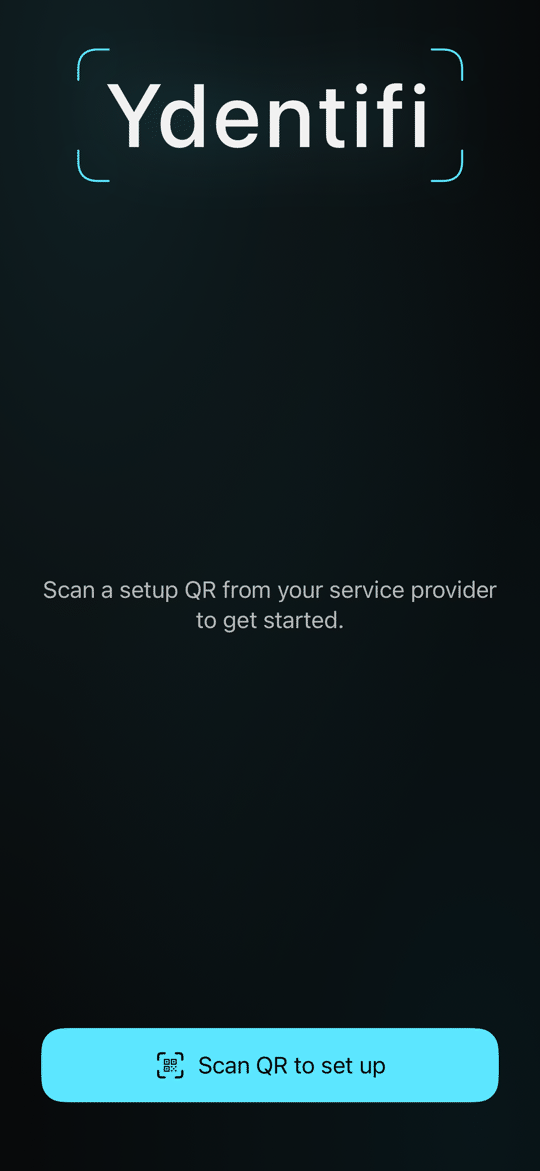
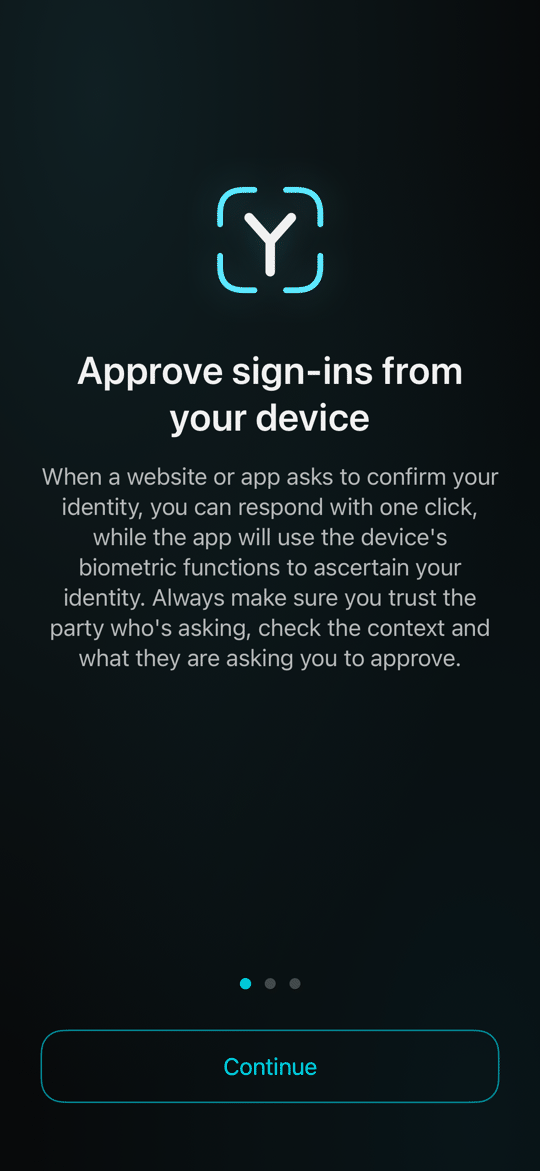
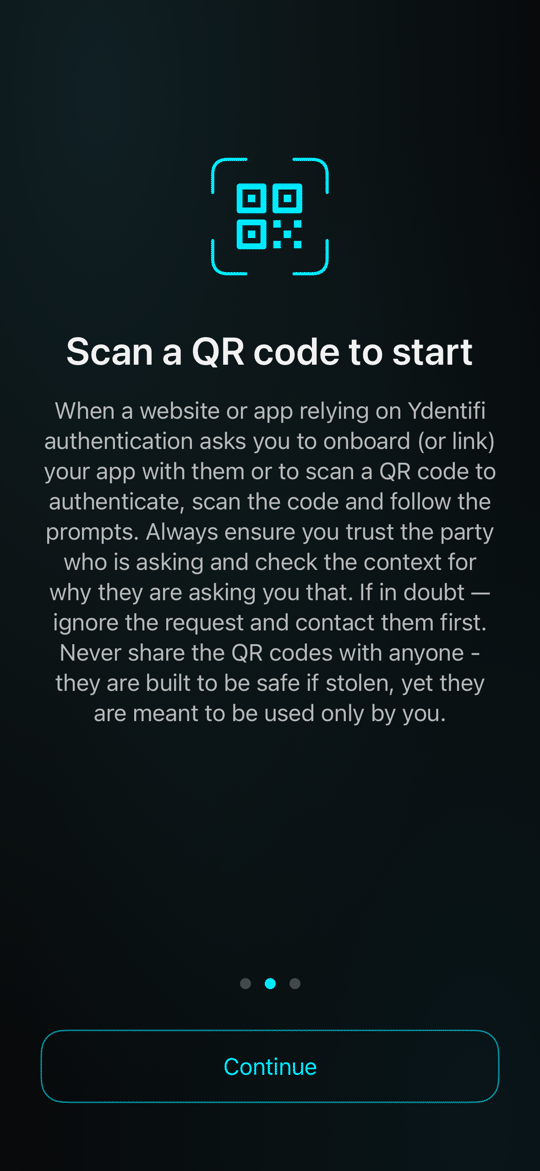
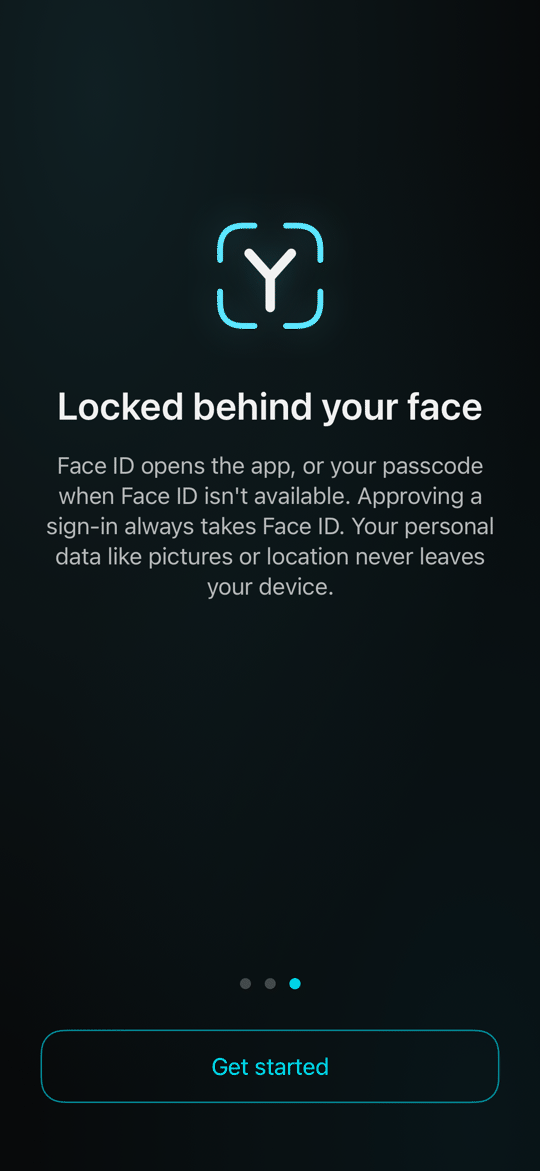

1You land on the welcome screen. No account, no secrets — the app only truly wakes up once you activate it by scanning an invite from your provider.
2A three-page intro explains what the app is for…
3…how a request will feel…
4…and that everything starts with a QR code from a service you use.
5The home screen with nothing enrolled: "No accounts yet." There is practically nothing doable here — first you must scan.
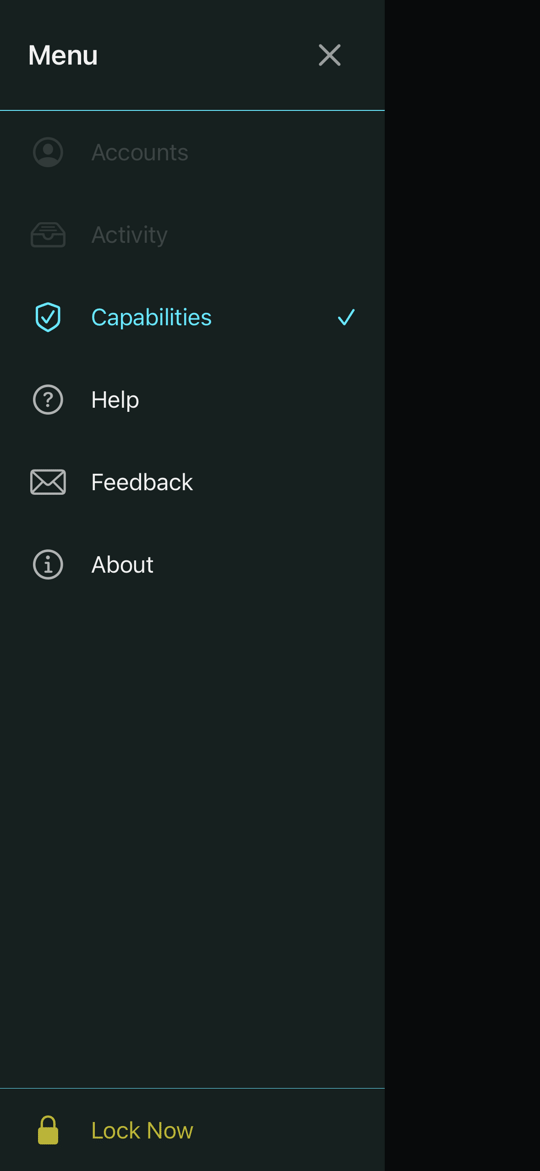
6Even the drawer reflects it: Activity, Capabilities and Feedback are greyed out until the first account exists.
Your home, once set up#
With accounts enrolled, the home screen is your list — every account Alice holds, across a few organisations, on the one phone.
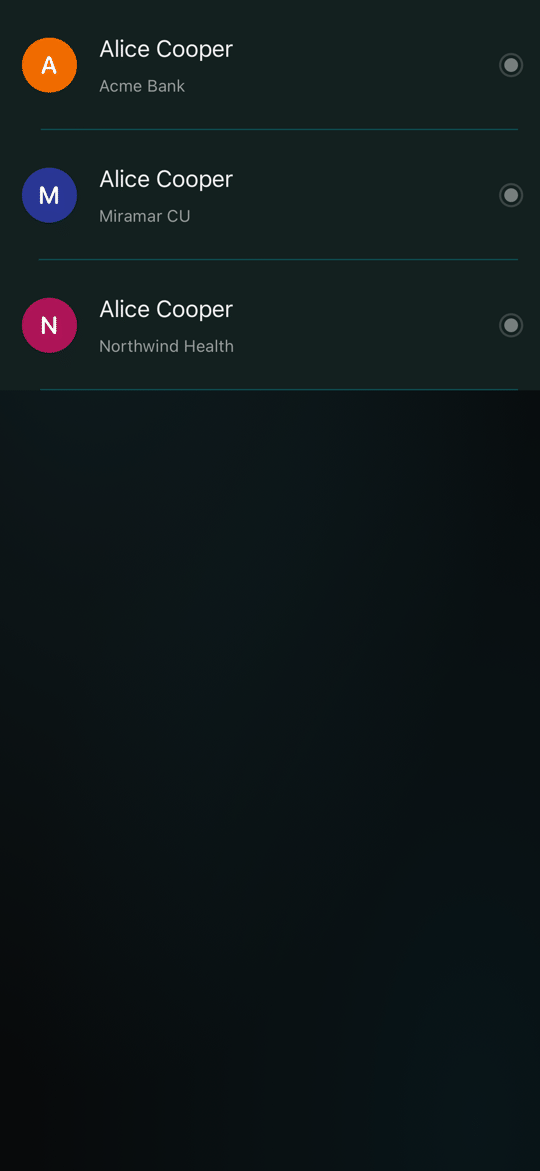
1Three accounts, three organisations — all Alice's: Acme Bank, Miramar CU, and Northwind Health. Each row shows a status dot.
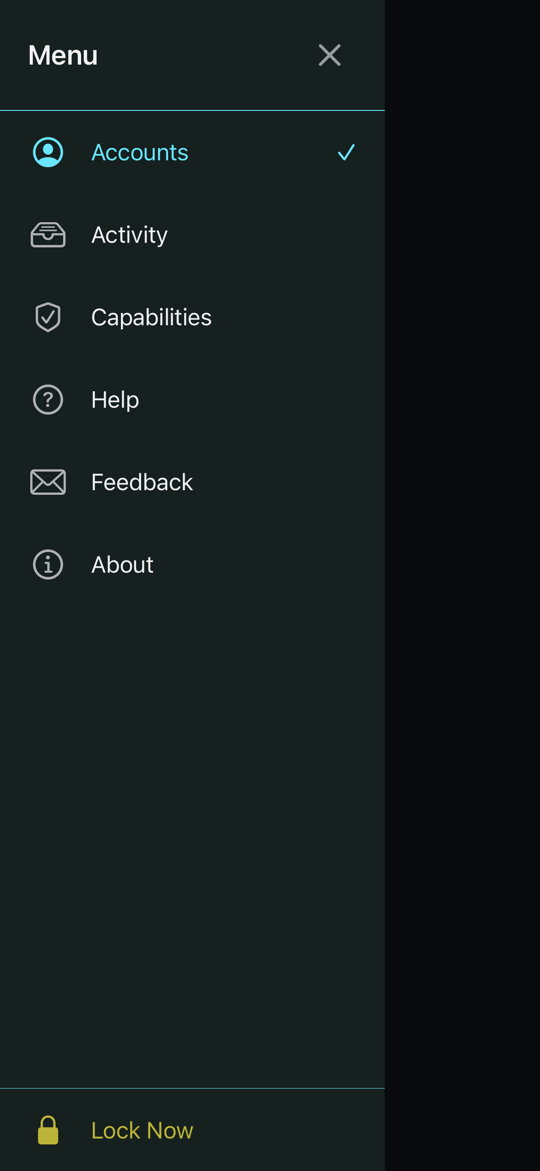
2The drawer, now fully live: Accounts, Activity, Capabilities, Help, Feedback, About, and Lock now.
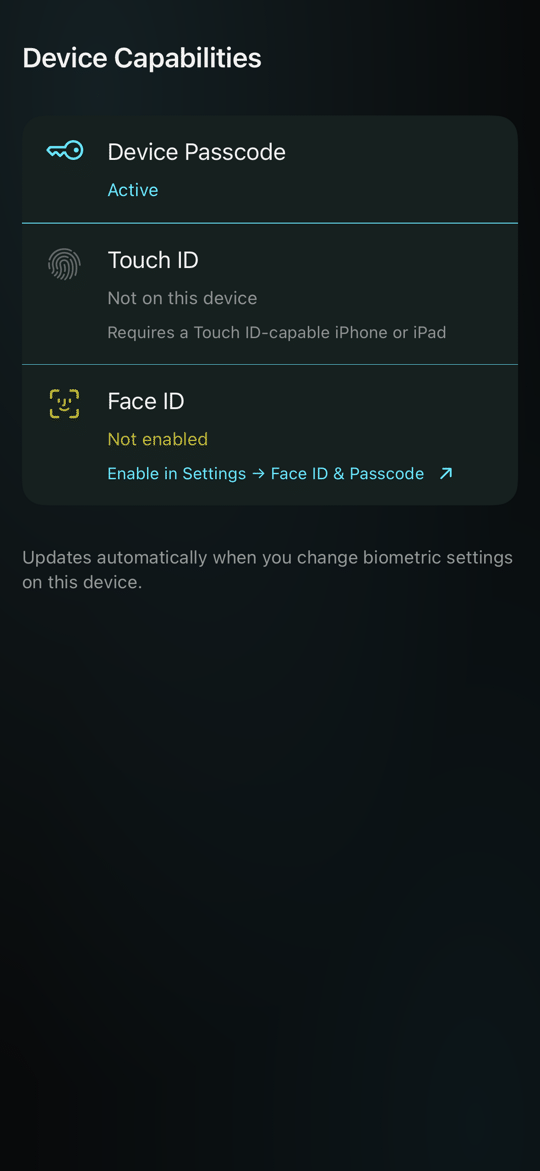
3Capabilities shows which checks this phone can do — Face ID or Touch ID, and the passcode — and what to change in Settings if one is off. Approving a request needs Face ID or Touch ID.