The app surface
ReadyThe parts always on screen — the drawer, scanner, header, and banners — plus the quiet corners: help and about.
Who this is for: anyone finding their way around the app, or looking for a control they saw once and can’t find again.
The parts of the app that are always present — and the quiet corners you visit rarely.
Information#
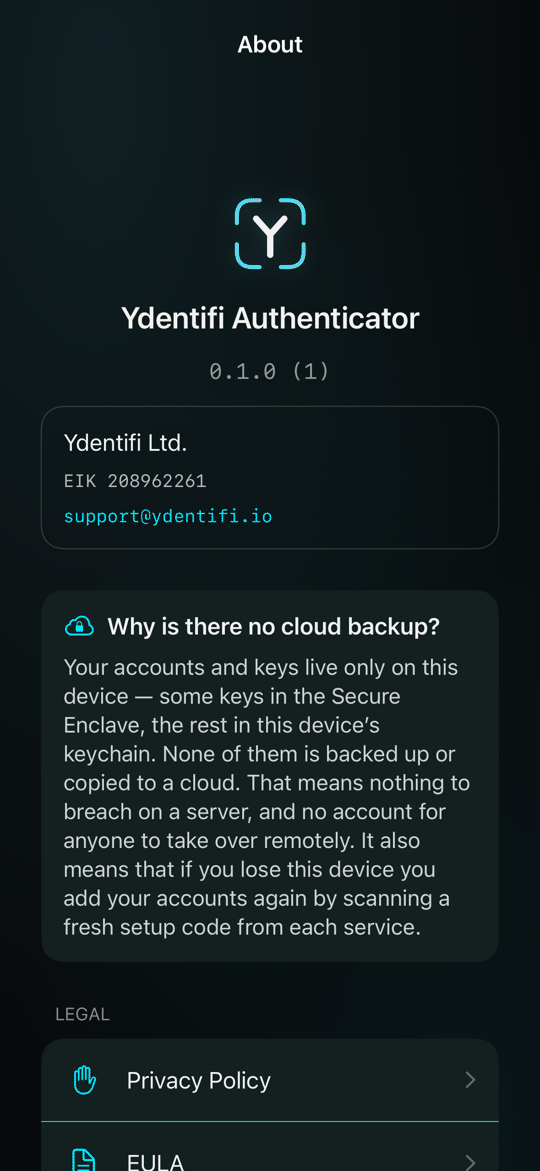
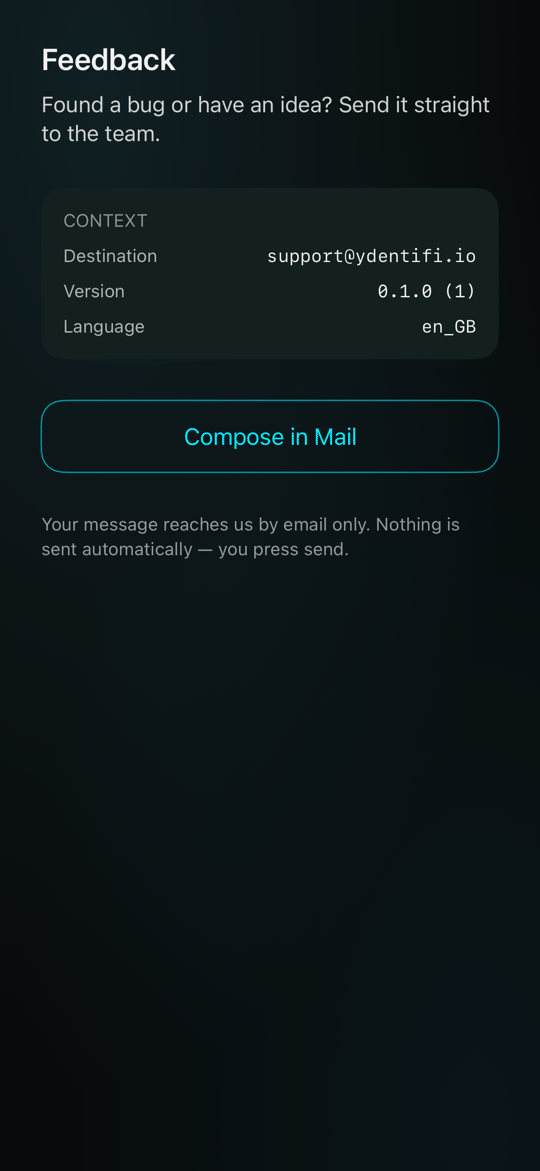
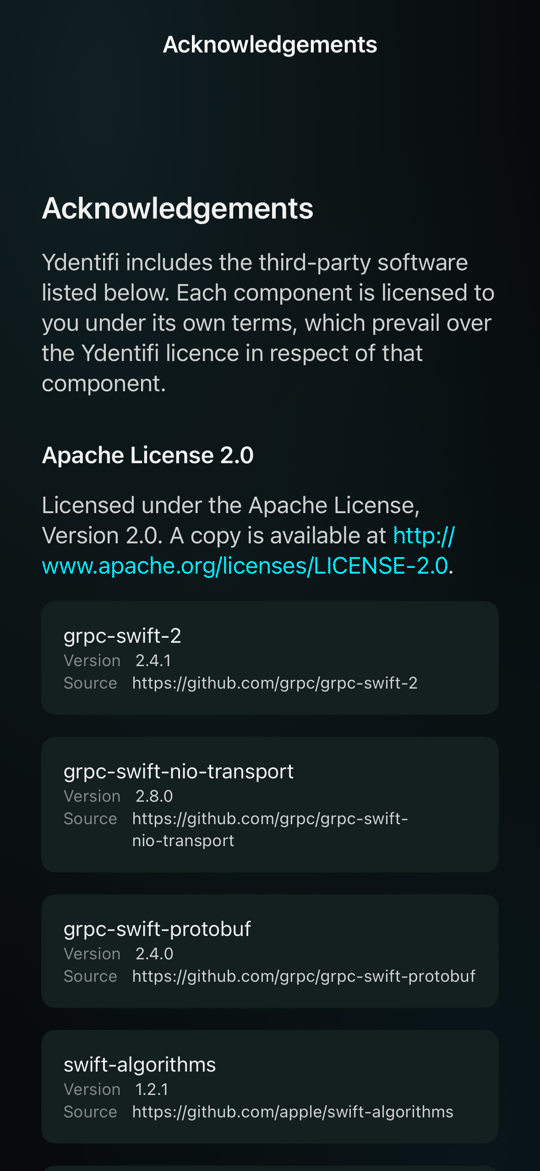
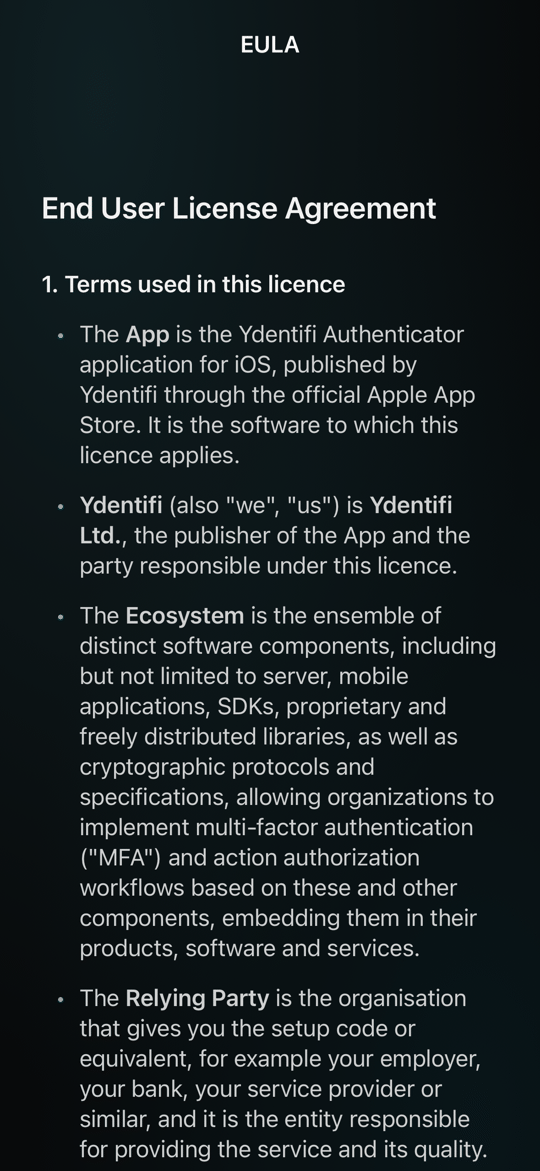
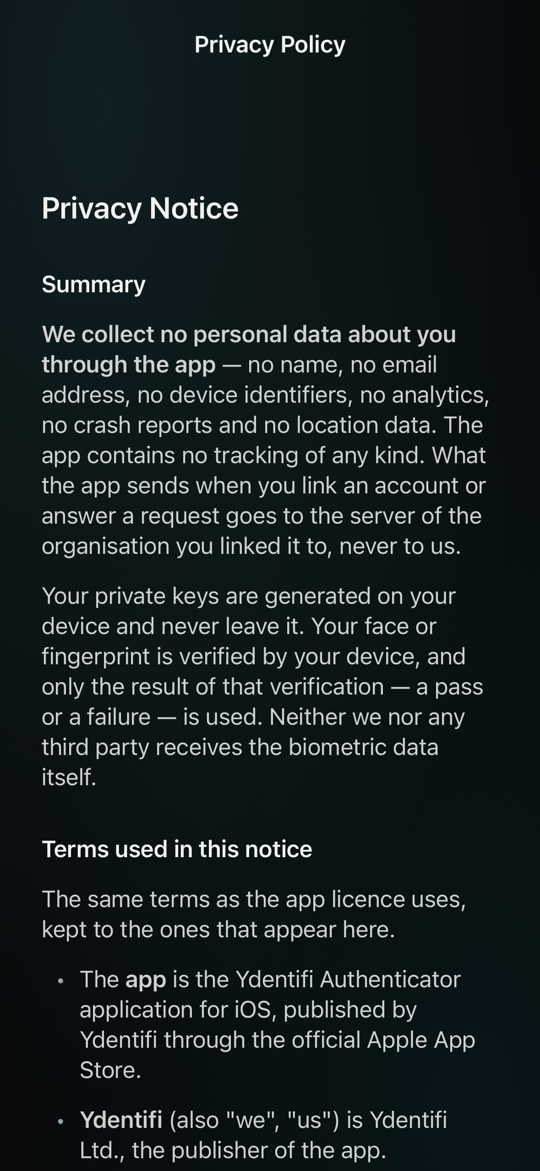
The quiet corners — help, about, feedback, and open-source licenses.
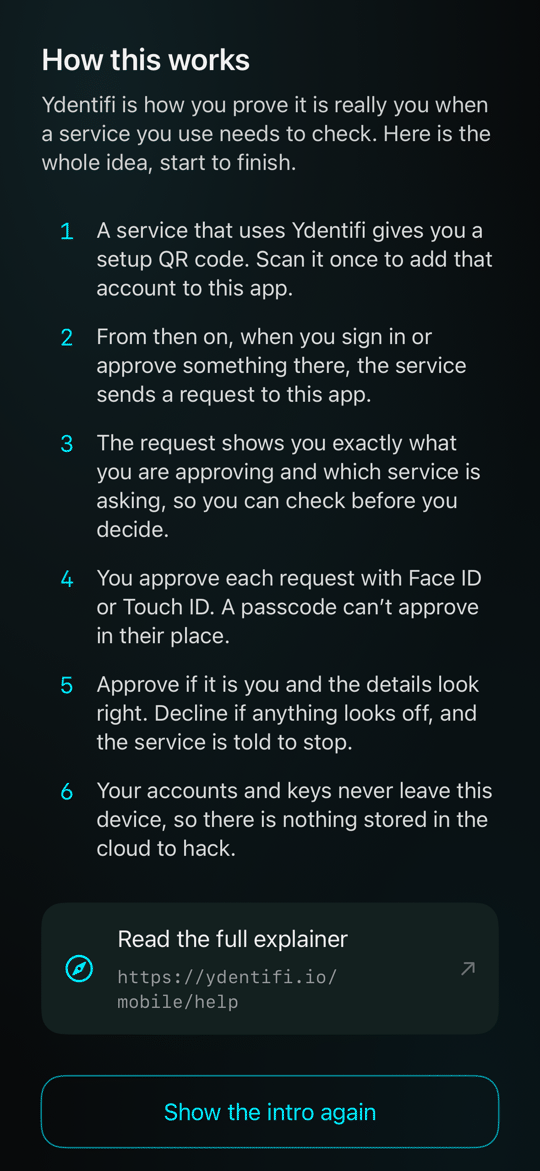
1Help. Show the intro again is at the bottom.
2About.
3Feedback.
4Open-source acknowledgements.
The persistent surfaces#
The chrome that is always there, described once.
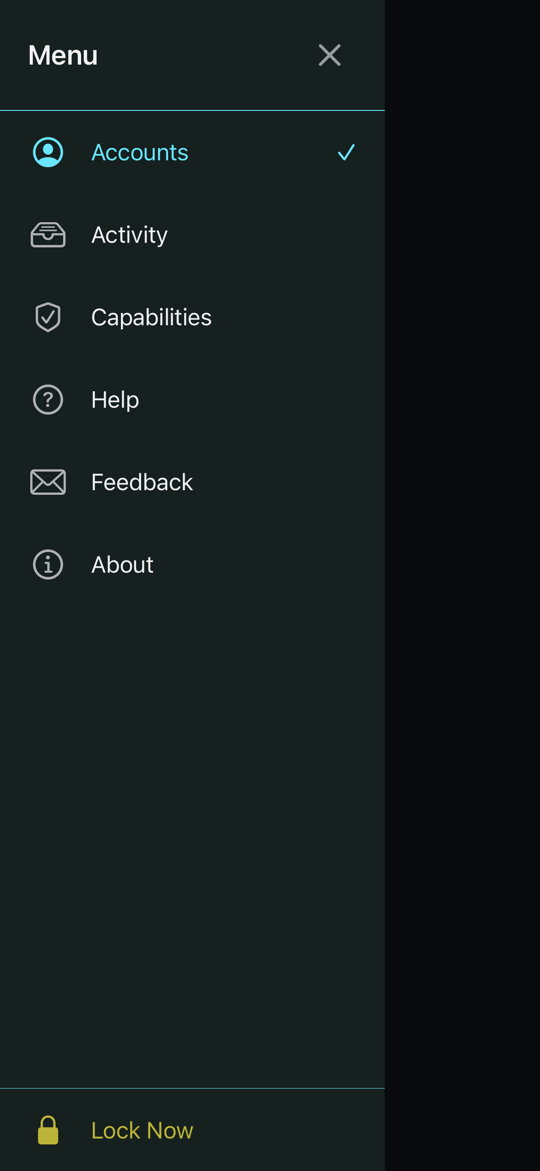
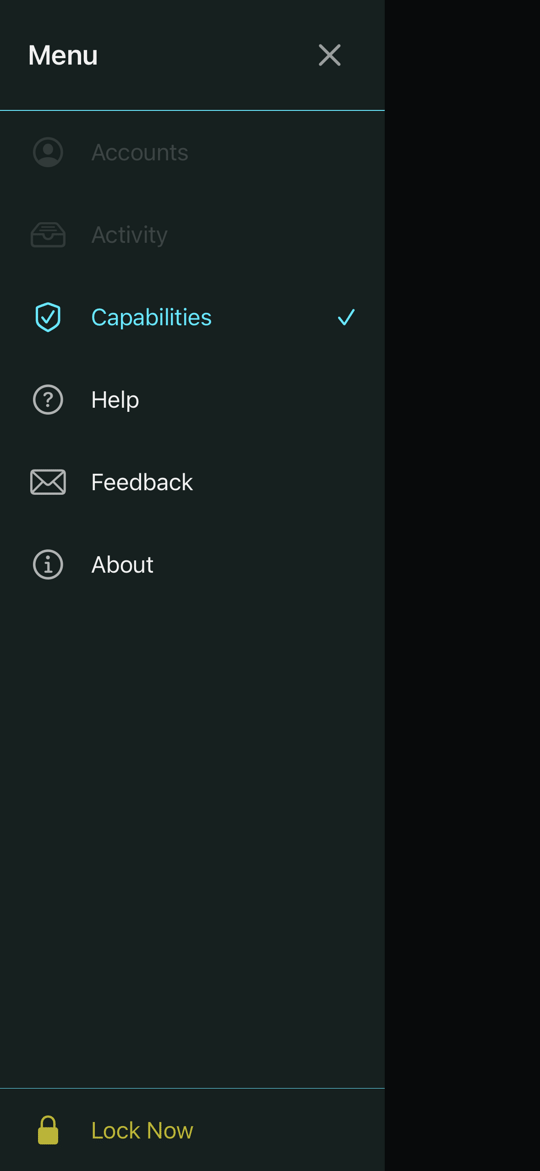
The navigation drawer
Tapped from the top-left. Lists the app's sections — Accounts, Activity, Capabilities, Help, Feedback, About — plus a Lock-now action. On a fresh install, Activity, Capabilities and Feedback are greyed out until the first account is added. Accounts, Help and About stay usable.
The scan lever (footer)
The scan button at the bottom opens the QR scanner. Every account begins with a scan. Before the first account, it is greyed out and the welcome screen's own scan button does the same job.


The header & permission pips
The drawer button and 3 permission pips: camera, Face ID or Touch ID, and location. A pip is lit when the app is allowed and grey when it is not. Tap a pip to see what the app uses it for, with a shortcut to Settings.

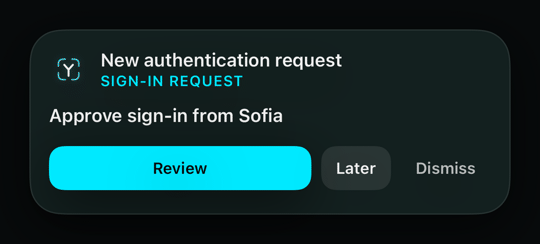
The incoming-request banner
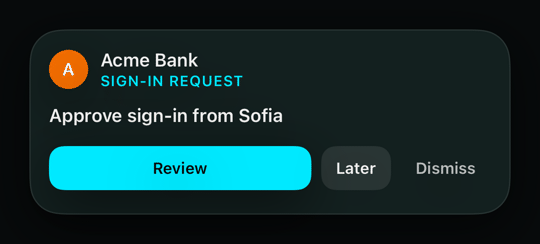
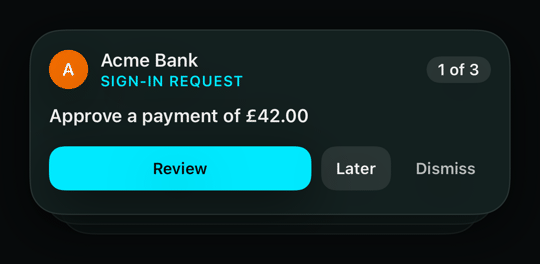
When a sign-in request arrives it drops in as a banner: a generic shield before the account is known, the account's avatar and service name once it is, and a +N badge with peeking cards when several are waiting at once.
Notices about your other devices
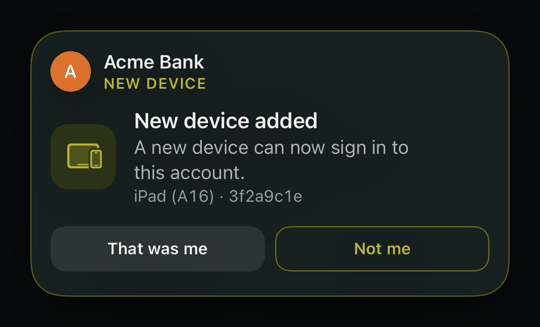
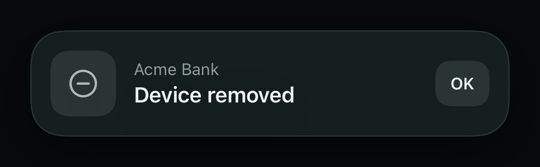
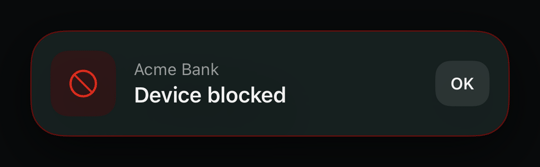
When another device is added to one of your accounts, can no longer sign in to it, or is blocked by the service, a banner says so. This phone is never announced to itself: if its own access ends, the account row shows it instead.